Lebenszyklus & Asset-Pool
ip·Solis verwaltet den gesamten Lebenszyklus von IT-Assets — von der initialen Zuweisung über Ablauf, Verlängerung, Rückgabe, Deprovisionierung bis hin zum Entzug bei Austritt. Diese Seite beschreibt das Datenmodell und die Konfigurationsoptionen, die steuern, wie sich Assets durch ihre Zustände bewegen.
Zuweisungsmodelle
Jeder Asset-Typ wird mit einem von zwei Zuweisungsmodellen konfiguriert, die bestimmen, wie Assets zugeteilt werden.
Capacity-Pooled
Ein gemeinsam genutzter Pool austauschbarer Assets. Wenn ein Benutzer eines anfordert, wählt ip·Solis ein verfügbares Asset aus dem Pool aus, weist es zu und verfolgt die Zuweisung über die gesamte Lebensdauer der Bestellung. Bei der Rückgabe wandert das Asset zurück in den Pool.
Typischer Einsatz: virtuelle Desktops, VPN-Konten, gemeinsam genutzte Server.
Benutzerkontingent (max_per_user) — begrenzt optional, wie viele Instanzen ein einzelner Benutzer gleichzeitig halten darf. Gezählt über alle nicht-terminalen Bestellzustände hinweg.
Assigned-Personal
Eine 1:1-Beziehung zwischen Asset und Benutzer ohne gemeinsamen Pool. Jede Bestellung erstellt oder verwaltet ein dediziertes Asset für genau diesen Benutzer.
Typischer Einsatz: physische Arbeitsplätze, persönlich zugewiesene Lizenzen.
Asset-Status
| Status | Bedeutung |
|---|---|
Free |
Im Pool verfügbar, bereit zur Zuweisung |
reserved |
Von einer geplanten Bestellung gehalten — noch nicht aktiv, aber für andere Anforderer nicht verfügbar |
busy |
Aktiv einem Benutzer zugewiesen |
Reinstall |
Nach return-to-pool-reinstall-Deprovisionierung zur Neuinstallation eingereiht |
Reinstalling |
Neuinstallations-Runbook wird gerade ausgeführt |
Failed |
Neuinstallations-Runbook fehlgeschlagen — manueller Eingriff erforderlich |
maintenance |
Von einem Operator offline genommen |
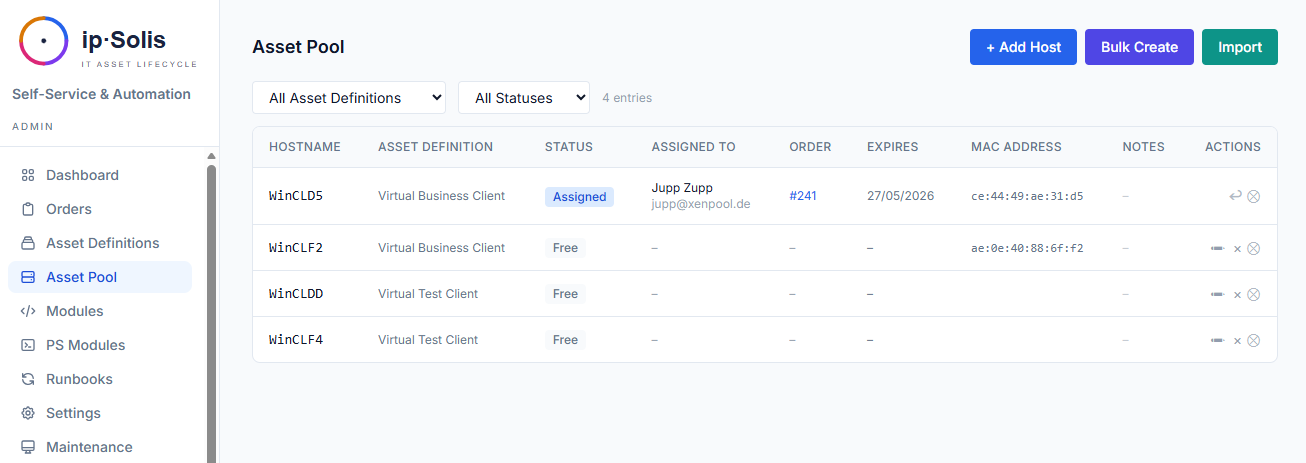
Das Admin-Dashboard zeigt Kachelzähler für Frei / In Nutzung / Fehlgeschlagen / Neuinstallation / Wartung / Gesamt, aktualisiert über Live-HTMX-Fragmente. (Die Asset-Pool-Liste bezeichnet denselben Zustand als „Zugewiesen" — beide beziehen sich auf den zugrunde liegenden Status busy.)
Asset-Typ-Konfiguration
Asset-Typen werden unter Admin → Asset-Definitionen definiert.
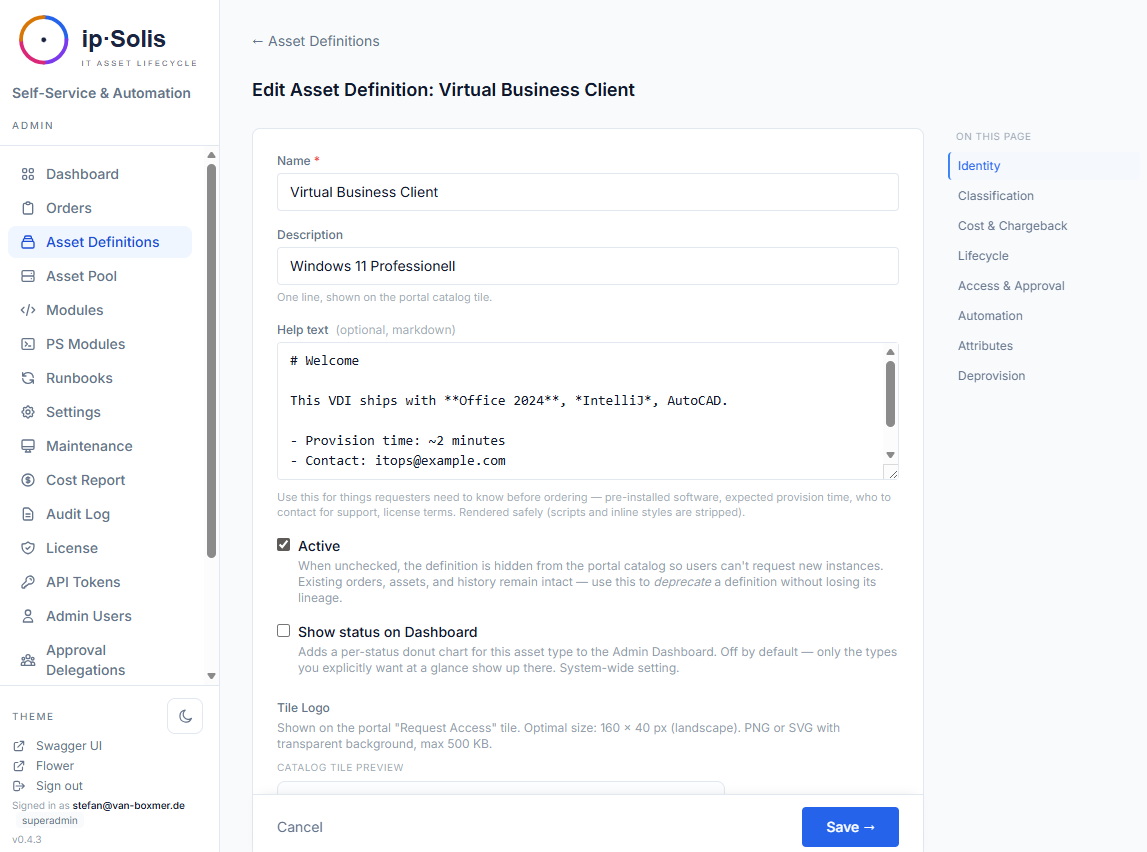
Wichtige Felder:
| Feld | Beschreibung |
|---|---|
| Kategorie | Gruppiert Asset-Typen im Portal-Katalog |
| Zuweisungsmodell | Capacity-pooled oder assigned-personal |
| Automatisierungsstrategie | Gruppenzugriff, Runbook oder Composite — siehe Automatisierung & Runbooks |
| Deprovisionierungsrichtlinie | Was passiert, wenn ein Asset zurückgegeben wird oder abläuft |
| Pool-Kapazität | Maximale Pool-Größe; Kapazitätswarnungen erscheinen auf dem Dashboard bei ≥80 % / ≥95 % Auslastung |
| Lebenszyklus verlängerbar | Ob Benutzer Verlängerungen anfordern können |
| Berechtigte Anforderer | AD-Gruppenbeschränkung — nur Mitglieder können diesen Typ sehen und anfordern |
| Max pro Benutzer | Benutzerkontingent (Pool- und Personal-Modelle) |
| Aktiv / inaktiv | Inaktive Typen verschwinden aus dem Portal, historische Bestellungen bleiben jedoch intakt |
Deprovisionierungsrichtlinien
Die Deprovisionierungsrichtlinie steuert, was ip·Solis tut, wenn eine Bestellung zurückgegeben, abgelaufen oder storniert wird.
| Richtlinie | Was passiert |
|---|---|
access_only |
Entfernt den Benutzerzugriff (AD-Gruppen usw.), lässt das Asset jedoch in seinem aktuellen Zustand |
return_to_pool |
Entfernt den Zugriff und markiert das Asset im Pool als Free |
return_to_pool_reinstall |
Entfernt den Zugriff, markiert als Reinstall und führt dann das Neuinstallations-Runbook aus, bevor zu Free zurückgekehrt wird |
deallocate |
Entfernt den Zugriff und gibt die zugrunde liegende Ressource frei (schaltet z. B. eine VM aus) |
delete |
Entfernt den Zugriff und löscht die zugrunde liegende Ressource dauerhaft |
custom_runbook |
Führt ein vollständig benutzerdefiniertes Deprovisionierungs-Runbook aus, das pro Asset-Typ definiert ist |
Ablauf und Verlängerung
Jede bereitgestellte Bestellung hat ein Ablaufdatum. Ein Celery-Beat-Task (check-expiring-assets) läuft stündlich, um:
- Erinnerungs-E-Mails an Benutzer zu senden, deren Assets innerhalb des konfigurierten Warnzeitfensters ablaufen
- Automatisch die Deprovisionierung für Assets auszulösen, deren Ablaufdatum überschritten ist
Benutzer können über die Portalseite Meine IT eine Verlängerung anfordern, sofern für den Asset-Typ lifecycle_renewable aktiviert ist. Verlängerungen unterliegen denselben Genehmigungsregeln wie neue Bestellungen.
Zugriffszertifizierungskampagnen
Zertifizierungskampagnen ermöglichen es Compliance-Teams, regelmäßig zu überprüfen, welche Benutzer aktiven Zugriff auf bestimmte Asset-Typen haben — eine Anforderung für ISO-27001-, SOX- und PCI-Audits.
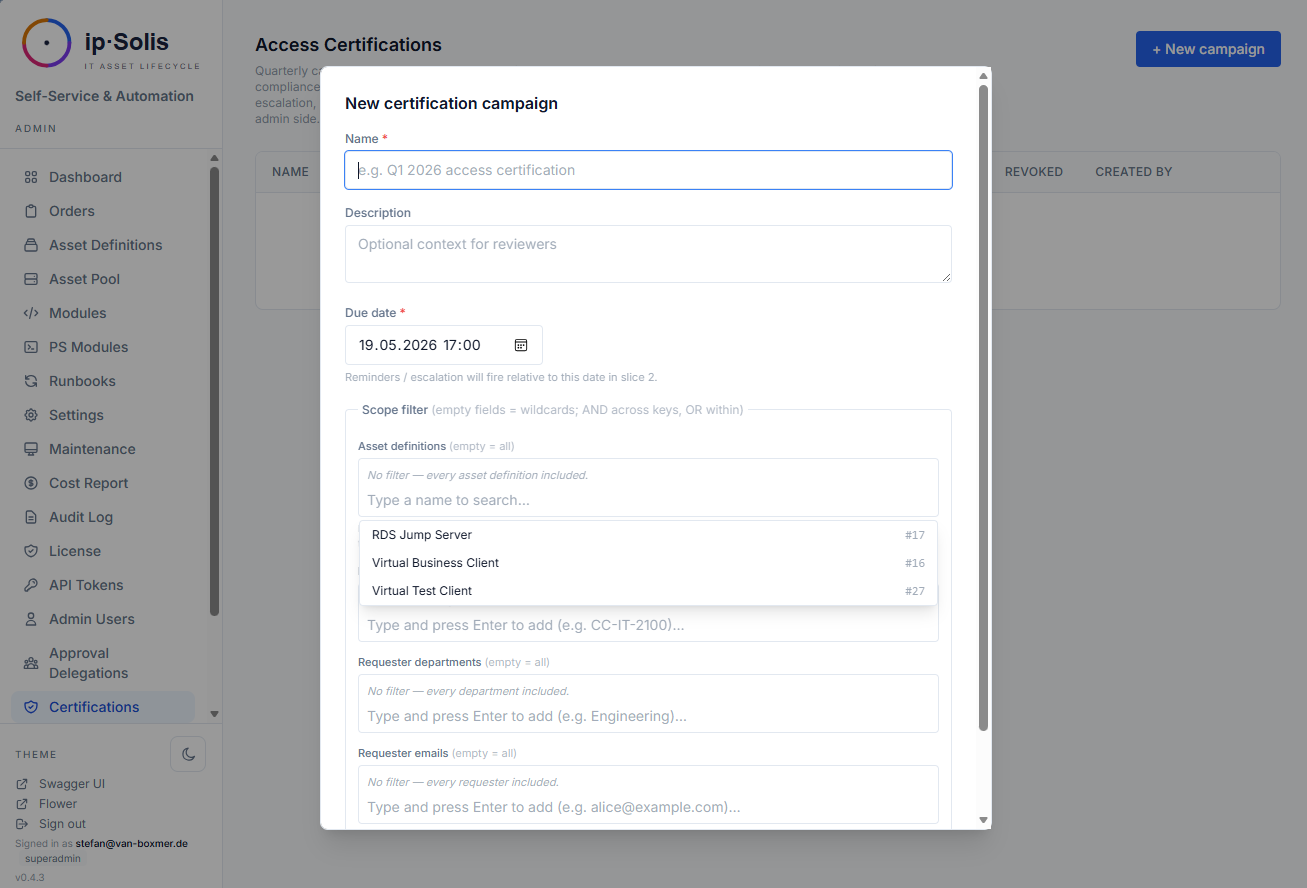
Eine Kampagne erstellen
Erstellen Sie unter Admin → Zertifizierungen eine Kampagne mit:
- Geltungsbereich — Filterung nach Asset-Typen, Kostenstellen, Abteilungen oder bestimmten Anforderer-E-Mails
- Fälligkeitsdatum — wann die Überprüfungen abgeschlossen sein müssen
- Eskalationskontakte — wer benachrichtigt wird, wenn Überprüfungen überfällig sind
- Auto-Entzug bei Überfälligkeit — opt-in: nicht überprüfter Zugriff wird nach dem Fälligkeitsdatum automatisch entzogen
Überprüfungsablauf
Wenn eine Kampagne gestartet wird, erzeugt ip·Solis eine Überprüfungszeile pro (passende Bestellung, Prüfer = der Vorgesetzte der Bestellung). Prüfer erhalten eine Kickoff-E-Mail mit einer signierten-Token-URL, die eine Überprüfungswarteschlange ohne Login öffnet. Von dort wählen sie:
- Bestätigen — der Benutzer behält den Zugriff; die Überprüfung wird geschlossen
- Entziehen — ip·Solis löst sofort das Deprovisionierungs-Runbook für diese Bestellung aus
Automatisierte Erinnerungen
Ein täglicher Beat-Task sendet Erinnerungs-E-Mails zu konfigurierbaren Zeitabständen vor dem Fälligkeitsdatum (Standard: 7 Tage und 1 Tag vorher), eine Überfälligkeitsbenachrichtigung nach der Frist sowie eine Zusammenfassung an die Eskalationskontakte. Der Auto-Entzug feuert, sofern aktiviert, für alle nicht überprüften Zeilen nach dem Fälligkeitsdatum.
Portal-Überprüfungswarteschlange
Prüfer mit Entra-ID-SSO können ihre Überprüfungswarteschlange auch unter /portal/certifications aufrufen — kein separates Admin-Konto erforderlich.
Onboarding-Bundles *(Pro)*
Ein Bundle fasst bestehende Asset-Definitionen zu einem Paket zusammen — die Standard-Ausstattung eines neuen Mitarbeiters (Laptop, VDI, M365-Gruppen, …), als Einheit bestellt. Bundles definieren keine neuen Assets; jede Position referenziert einen Asset-Typ (erforderlich oder optional, mit optionaler Attribut-Vorbelegung).
Eine Zuweisungsregel bildet Benutzerattribute (Abteilung, Kostenstelle, Titel, …) auf ein Bundle ab und nutzt denselben UND/ODER/NICHT-Bedingungseditor wie die bedingten Genehmigungsregeln. Es gibt keinen lokalen Benutzerspeicher, daher ist die Regelauswertung eine reine Funktion über ein Attribut-Dictionary — aufgelöst aus dem AD, per SCIM geliefert oder manuell eingegeben.
Die Bestellung eines Bundles erzeugt eine Auftragsgruppe mit einer Bestellung je auflösbarer Position, über die normalen Genehmigungs- und Ausführungspfade — Genehmigung pro Position, Kapazität, Runbooks und Audit funktionieren unverändert. Sie ist idempotent: Ein Asset-Typ, den der Benutzer bereits aktiv besitzt, wird übersprungen. Ein Bundle kann ausgelöst werden über:
- Onboarding-Admin — für einen Benutzer auswerten (Attribute auflösen, passende Bundles + zu bestellende Positionen vorschauen), dann bestellen
- den Self-Service-Pakete-Katalog — ein Benutzer bestellt ein Paket für sich selbst
- einen SCIM-Joiner (siehe Integrationen → SCIM)
- die erste Portal-Anmeldung eines Benutzers (Opt-in,
onboarding.eval_on_first_login)
Bundles und Regeln verwalten Sie unter Onboarding.
Design-Hinweis: ip·Solis hat sein Auftragsmodell bewusst nicht in einen verpflichtenden Header invertiert. Eine Einzelbestellung bleibt exakt wie zuvor (keine Gruppe); ein schlanker
order_group-Header existiert nur für Multi-Item-Anfragen — so ergänzen Bundles Funktionalität, ohne den bewährten Einzelbestell-Pfad anzutasten.
HR-Austrittsprozess
Wenn ein Benutzer die Organisation verlässt, entzieht ip·Solis automatisch alle seine aktiven Zugriffe. Der Austrittsprozess wird über einen von zwei Einstiegspunkten ausgelöst:
- HR-Webhook unter
POST /hr/leaver— speziell konzipiert für Workday, SAP SuccessFactors, Microsoft Graph und benutzerdefinierte HR-Systeme - SCIM 2.0 unter
/scim/v2/*— eine auf Austritte fokussierte Teilmenge von RFC 7644, kompatibel mit Okta-, SailPoint- und Ping-Deprovisionierungs-Konnektoren
Beide Pfade führen dieselbe process_leaver()-Logik aus:
- Jede aktive Bestellung (pending, pending-approval, scheduled, processing, provisioning, provisioned, delivered) wird auf REVOKING gesetzt und ihr Deprovisionierungs-Runbook wird ausgelöst
- Ausstehende Genehmigungen, bei denen der Ausscheidende der Genehmiger war, werden als abgelöst (superseded) markiert und aus der Quorum-Bewertung entfernt. Wenn die verbleibenden Genehmiger das Quorum-Limit weiterhin erreichen können, wird die Bestellung automatisch fortgesetzt. Wenn das Quorum ohne die Stimme des Ausscheidenden nicht mehr erreicht werden kann, bleibt die Bestellung in
pending-approvalund muss manuell über Admin → Bestellungen neu zugewiesen werden. - Ausstehende Zertifizierungsüberprüfungen, die dem Ausscheidenden zugewiesen sind, werden als abgelöst (superseded) markiert. Die Überfälligkeits- und Auto-Entzugslogik der Kampagne behandelt den verbleibenden nicht überprüften Zugriff in ihrem normalen Zyklus. Operatoren können offene Überprüfungen über die Admin-UI neu zuweisen.
Der Prozess ist idempotent — ein erneutes Auslösen für dieselbe E-Mail ist unbedenklich; bereits entzogene Bestellungen befinden sich nicht mehr im aktiven Bestand.
Überwachung von Austrittsereignissen
Admin → Austrittsereignisse zeigt aktuelle Ereignisse mit Status-Badges (received / processed / failed), pro Ereignis Zählungen, was entzogen/abgelöst wurde, sowie den triggered_by-Audit-Trail, sodass Sie jedes Ereignis bis zu seiner Quelle zurückverfolgen können.
Einrichtung des HR-Webhooks
Authentifizierung: entweder ein bereichsbeschränktes API-Token (Scope hr:leaver, bevorzugt) oder eine HMAC-SHA256-Body-Signatur mit WEBHOOK_SECRET_TOKEN.
Unterstützte Payload-Formen:
| Anbieter | Form |
|---|---|
| ip·Solis nativ | {"email": "alice@example.com"} |
| Workday | {"workerId": "WD-…", "eventType": "terminated", "primaryEmail": "…"} |
| SAP SuccessFactors | {"PERSON": {"PERNR": "…", "email": "…"}} |
| Microsoft Graph | {"value": [{"resourceData": {"userPrincipalName": "…"}}]} |
Einrichtung von SCIM 2.0
Erstellen Sie unter Admin → API-Tokens ein Token mit den Scopes scim:read + scim:write und fügen Sie es in die Konfiguration Ihres IDP-Konnektors ein. Sowohl DELETE /scim/v2/Users/{id} als auch PATCH active=false lösen den Austrittsprozess aus.