Automation & Runbooks
ip·Solis automates IT operations through a runbook engine built on PowerShell and Celery. Runbooks define ordered sequences of steps that execute when an order is provisioned, modified, or deprovisioned. Standalone runbooks extend this to ad-hoc and scheduled operations not tied to any asset type.
Automation Strategies
Each asset type is configured with one of three automation strategies that determine how provisioning and deprovisioning are executed.
Group Access
ip·Solis adds or removes the user from one or more Active Directory groups. No PowerShell scripting required. Configure group targets in the asset type under Targets.
Each target specifies:
- Type — AD group. (Entra ID group and RDS collection targets are planned — coming soon; today only AD group is executed.)
- Identifier — the group DN (supports the
{asset_name}placeholder, substituted with the assigned asset at provision time) - Principal source — which of the order's users are added to the group: the requester, the additional RDP users, the admin users, or all of them
Runbook
A fully scripted workflow. Steps are executed in order by a Celery worker. Each step calls a named script module (a PowerShell script stored in the database) with configurable parameters.
Failures in any step abort the runbook and set the order to failed with the step's error output in the log.
Composite
Combines both Group Access and Runbook steps in a defined sequence. Steps of type GROUP_TARGETS and RUNBOOK are interleaved in the order specified. Use this for workflows that need both AD group manipulation and custom PowerShell operations.
Runbook Editor
Asset-type runbooks are configured in Admin → Asset Definitions → [type] → Runbooks.
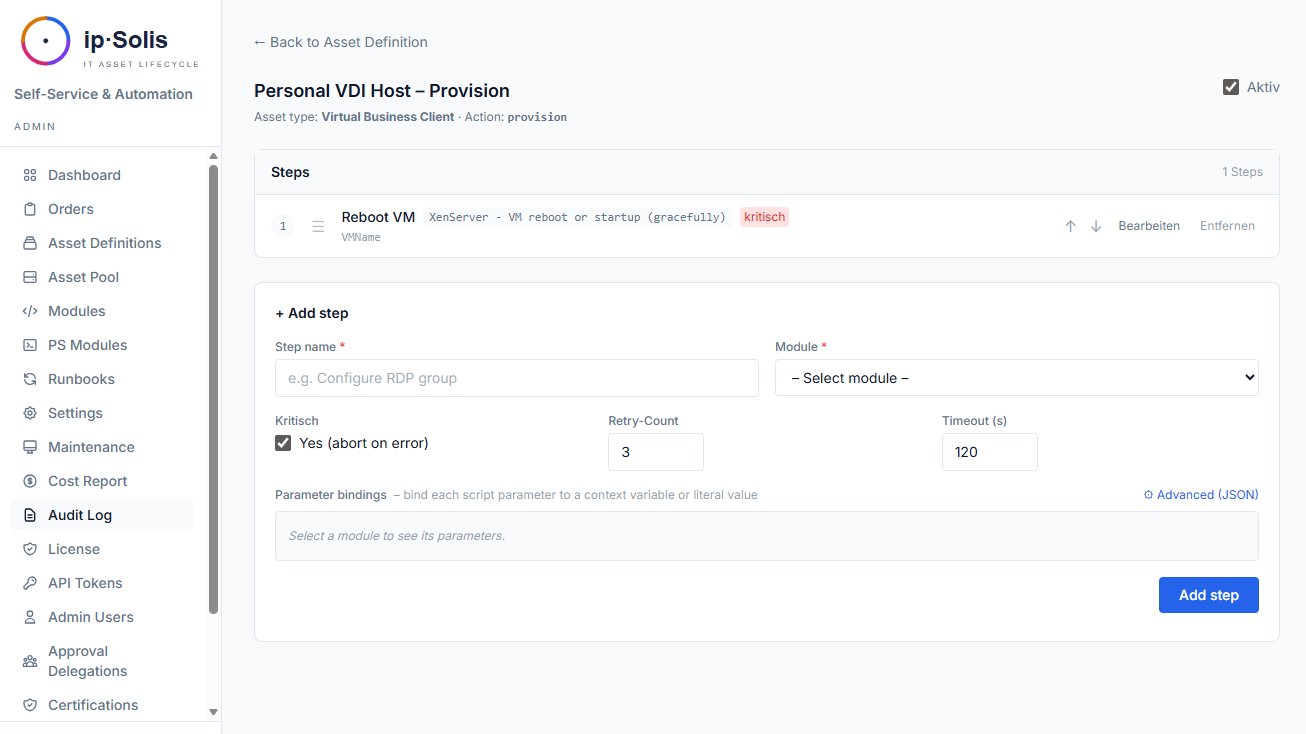
Each runbook definition is scoped to an action:
provision— runs when an order is approved and provisioning startsmodify— runs when a user modifies an active order's attributesdeprovision— runs when an order is returned, expired, or revoked
Adding and Ordering Steps
Steps are added from the module registry. Each step specifies:
- Module — the script module to call
- Parameters — values mapped to the module's PowerShell
param()block. Each parameter is bound either to a context variable (order, asset, or user data resolved at runtime) or a literal value (a fixed string typed directly into the field)
Steps can be reordered using the drag handle (☰) or the ↑/↓ keyboard buttons.
Step Execution Tracking
Every step execution is recorded with:
- Start and finish timestamps
- Structured JSON output from the PowerShell script's stdout
- Error output if the step failed
The order detail page in the admin UI shows a collapsible step log for each order.
Script Modules
Script modules are the building blocks of runbooks — named PowerShell scripts stored in the database and callable as runbook steps.
The in-app script editor at Admin → Script Modules supports:
- Writing and editing PowerShell scripts with a
param()block - Parameter introspection — ip·Solis parses the
param()block to display parameter names and types - Categorisation by prefix (e.g.,
SCCM - Delete Device→sccmcategory) - Export to disk for git tracking (
POST /admin/seed/export)
Script requirements:
- Return JSON on stdout
- Use plain ASCII (no Unicode characters)
- Not rely on interactive prompts
Parameter Schema and "Parse from Script"
Every script module has a parameter schema — a structured list of the parameters the script accepts (name, type, required flag, optional default value). The schema is what the runbook step editor reads to build the parameter binding UI: one row per parameter, with a type badge and a required indicator.
You define the schema manually using the parameter table below the editor, or let ip·Solis derive it automatically by clicking ↻ Parse from script. That button sends the current script body to the server, which reads the PowerShell param() block and extracts each declared parameter — its name, type annotation, [Parameter(Mandatory=$true)] flag, and default value. Existing rows are updated in place; new parameters are added; parameters that have been removed from the script are left untouched (so you can remove them manually if needed).
Supported PowerShell types are mapped to four canonical types used by the UI:
| PowerShell type | Schema type |
|---|---|
[string], [datetime], [PSCredential] |
string |
[int], [int32], [int64], [long] |
int |
[bool], [switch] |
bool |
[hashtable], [array], [object] |
json |
Parameter Scopes
Scripts and runbook step bindings work with three distinct variable scopes. The § Insert variable picker in the script editor groups them visually.
Local parameters (PARAMS)
Local parameters are the parameters declared in the script's own param() block. They represent the script's inputs — the values the runbook step binding must supply each time the script runs.
Inside the script, local parameters are available both as their declared PowerShell variables ($VMName, $UserEmail, …) and via the injected $PARAMS hashtable ($PARAMS.VMName). The $PARAMS form is useful when parameter names are dynamic or when passing the whole set to a helper function.
In the runbook step editor, each local parameter appears as a binding row. You choose whether to supply it as a literal value (a fixed string) or map it to a context variable resolved at runtime.
Global variables (VARS)
Global variables are key-value pairs stored in the database at Admin → Global Variables. They are available to every script without being explicitly passed as parameters, via the injected $VARS hashtable:
$domain = $VARS.'ad.domain'
$server = $VARS.'sccm.server'
Use global variables for values that appear across many scripts but may change — domain names, server addresses, organisation codes, shared credentials. Changing the value in one place updates it everywhere.
In addition to user-defined global variables, the $VARS hashtable also exposes infrastructure connection keys from the admin settings: xenserver.host, xenserver.username, xenserver.password, vsphere.host, vsphere.username, vsphere.password.
Secret-typed global variables are stored encrypted. Their values are never rendered in the admin UI after creation and are only decrypted at worker execution time.
Runbook context variables (CTX)
Context variables are injected by the runbook runner at execution time and represent the live state of the order being processed. They are not declared in the script's param() block — the runner passes them alongside the step's own local parameters, so they are also accessible via $PARAMS:
$assetName  = $PARAMS.asset_name
$userEmail  = $PARAMS.user_email
$orderId    = $PARAMS.order_id
$expiresAt  = $PARAMS.expires_at
Available context variables:
| Key | Description |
|---|---|
asset_name |
Name of the asset picked from the pool |
asset_id |
Database ID of the asset |
asset_type_name |
Name of the asset type |
asset_type_id |
Database ID of the asset type |
order_id |
Database ID of the order |
requested_from |
Order start date |
expires_at |
Order expiry date |
user_email |
Email of the requesting user |
user_name |
Display name of the requesting user |
owner_email |
Email of the asset owner (if set) |
owner_name |
Display name of the asset owner |
rdp_users |
RDP user list (from the order form) |
admin_users |
Admin user list (from the order form) |
snow_req |
ServiceNow REQ number (from the inbound webhook) |
snow_ritm |
ServiceNow RITM number (from the inbound webhook) |
In the runbook step editor, context variables are offered in the Context var dropdown grouped by category (Asset, Order, Users, XenServer, vSphere). Selecting one is equivalent to writing $PARAMS.<key> in the script.
Standalone Runbooks *(Pro)*
Standalone runbooks are not tied to any asset type. They are useful for housekeeping tasks, one-off operations, bulk user management, and scheduled maintenance jobs.
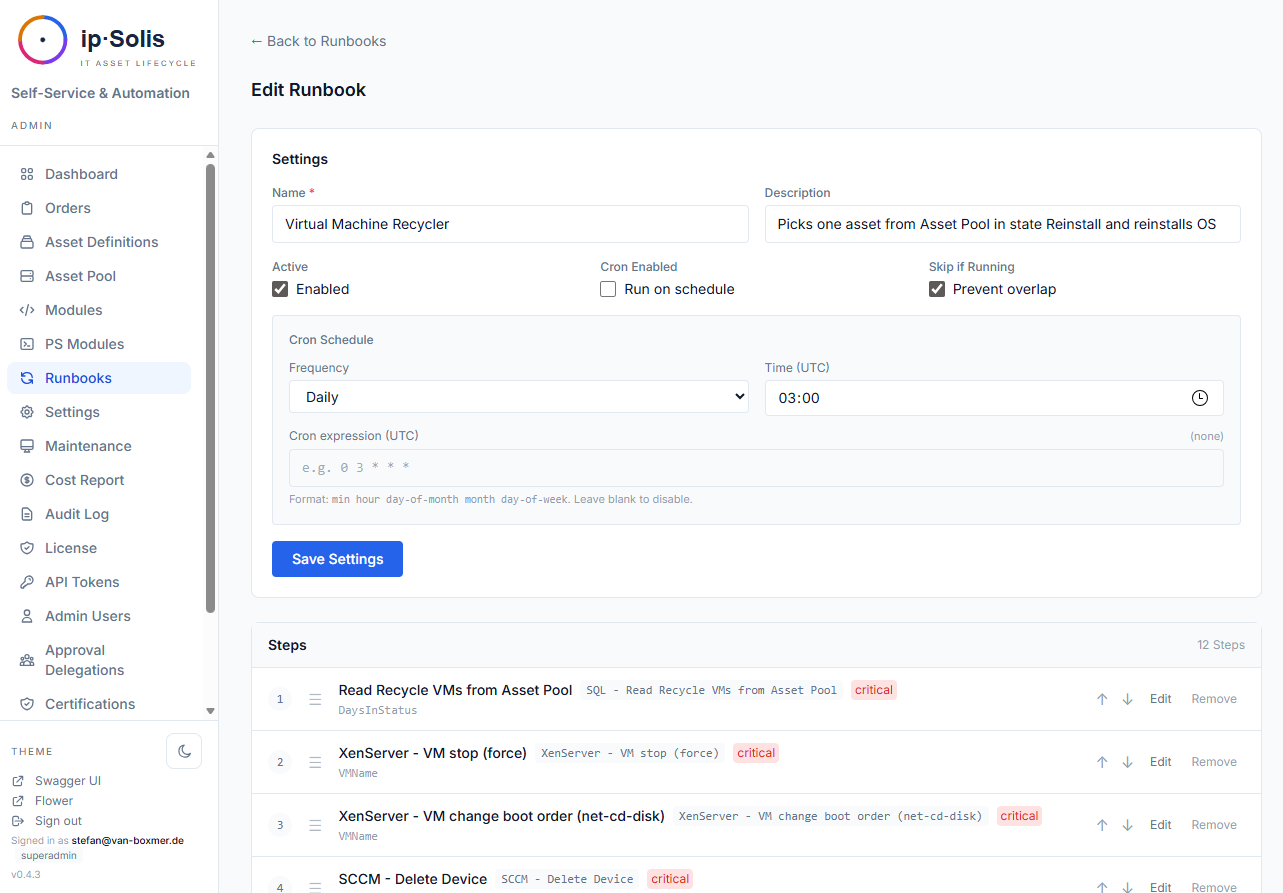
Ad-Hoc Execution
Run a standalone runbook immediately from Admin → Standalone Runbooks → Run. Execution is tracked with a per-run history log, structured step output, and an optional operator note.
Cron Scheduling
Standalone runbooks can be assigned a cron expression. The Celery Beat task dispatch-standalone-cron runs every minute and dispatches runbooks whose schedule has fired. Each run is recorded in the runbook's history.
The cron expression follows standard UNIX syntax (minute, hour, day-of-month, month, day-of-week). Examples:
| Expression | Meaning |
|---|---|
0 2 * * * |
Daily at 02:00 |
*/15 * * * * |
Every 15 minutes |
0 8 * * 1 |
Every Monday at 08:00 |
PowerShell Module Store
ip·Solis maintains a registry of PowerShell modules that can be loaded by script modules running in the worker container.
Admin → Modules lets operators:
- Install from PowerShell Gallery — search and install any public PS Gallery module
- Upload a custom module — upload a
.ziparchive (wrapped module folder) - Toggle Linux compatibility — mark a module as
Linux ✓,Windows only ✕, orUnverified ?
The worker runs PowerShell 7 on Linux. Modules tagged PSEdition_Desktop only won't load. The compatibility flag helps operators track which modules are safe to use in steps without an off-host Windows PowerShell remoting target.
Installed modules are stored in the ps_modules table and are available to all script modules.
Global Variables
Global variables are key-value pairs stored in the database and injectable into runbook step parameters. They are useful for values that appear in many runbooks but may change over time — domain names, server addresses, organisation codes.
Manage global variables at Admin → Global Variables. Reference them in runbook step parameters as {{var.my_variable_name}}.
Secret-typed variables are stored encrypted and their values are never rendered in the admin UI after creation.
PowerShell Execution Environment
Scripts run inside the Celery worker container (ipsolis-worker) using pwsh (PowerShell 7 on Linux). The worker handles:
- SSL certificate bypass — injected globally for self-signed cert environments (XenServer, vSphere, SCCM)
- Interactive prompt suppression — stdin is pre-answered to prevent scripts from hanging on prompts
- Stdout capture — the script's JSON output is parsed and stored in the step log
Scripts that call external systems (AD, vSphere, XenServer, SCCM) do so using the credentials stored in app_config, not via .env. This means credential rotation only requires an update in the admin settings — no container rebuild.
Observability
- OpenTelemetry tracing — each Celery task produces a span linked to the originating API request trace. Traces flow to any OTLP-compatible collector (Jaeger, Tempo, SigNoz, Honeycomb)
- Step logs — available in the order detail page in the admin UI for every runbook execution
- Standalone run history — each cron or ad-hoc run records start time, finish time, per-step status, and operator notes