Self-Service Portal
The self-service portal lets employees request IT assets, track order status, extend or return active resources, and manage their digital workspace — without raising a helpdesk ticket. The portal is accessible at /portal and is fully separated from the admin UI.
Authentication
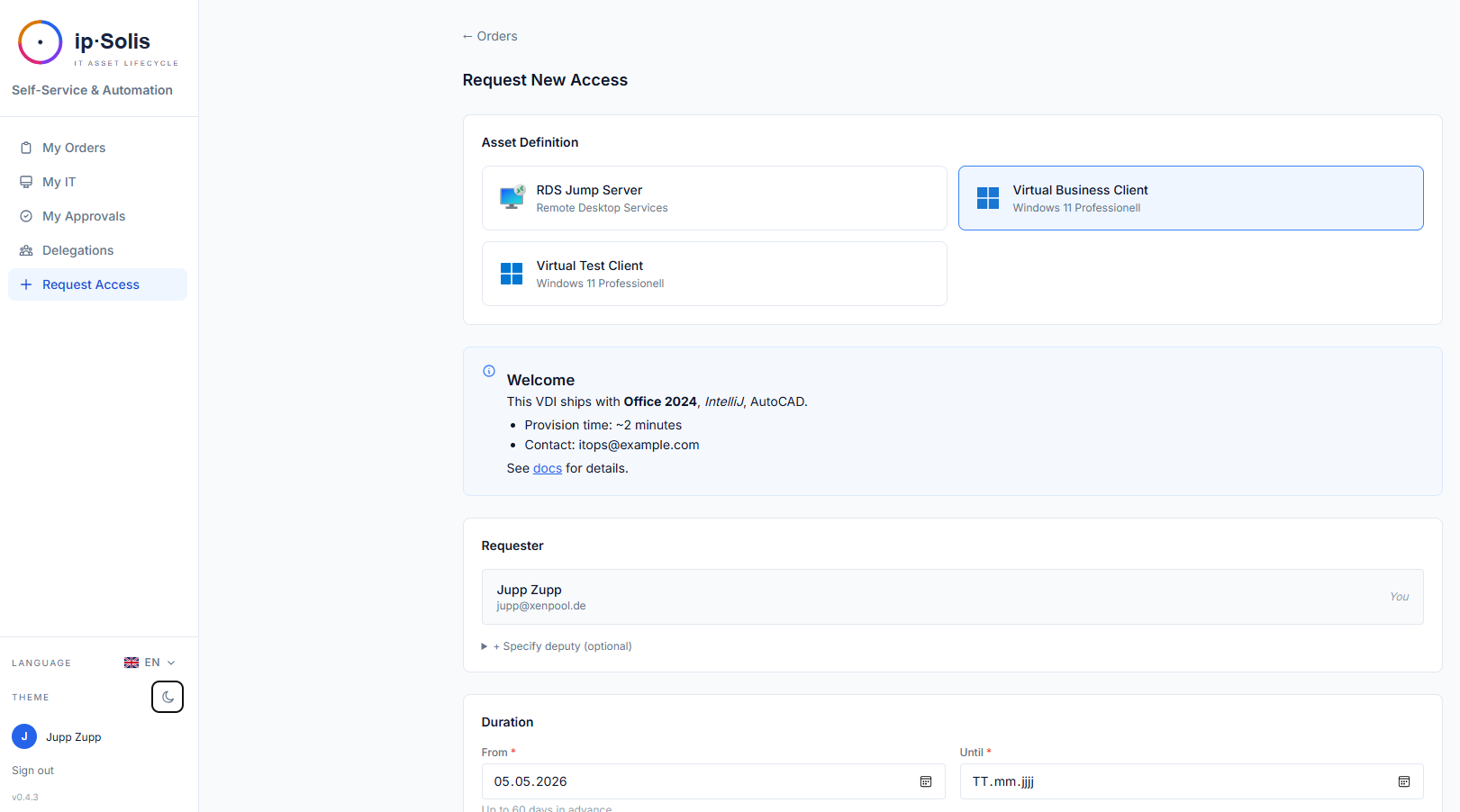
Whether the portal requires a login is controlled by Require login to access the portal (Admin → Settings → Authentication):
- Off — the portal is open and all users share an anonymous identity. Suitable for testing or internal-only deployments without SSO.
- On — users must sign in before they can browse the catalog or place orders.
When login is required, ip·Solis supports two kinds of login method, which can be combined:
| Method | Behaviour |
|---|---|
| OIDC single sign-on | One or more standards-based OpenID Connect identity providers — any compliant IdP (Microsoft Entra ID, Okta, Ping, Google, Keycloak, Authentik, Zitadel, …). Each provider self-configures from its issuer's discovery document; add them under Admin → Settings → Authentication → OIDC Providers. The callback is /portal/auth/<provider>/callback. |
| On-prem LDAP | Optional username/password login against your Active Directory / LDAP (auth.ldap_enabled), for environments without cloud SSO. |
When more than one login method is enabled, users see a chooser; with exactly one, they go straight to it. On successful login the user's email address is resolved automatically. Manager lookup for approval routing uses the same AD / LDAP connection.
Requesting an Asset
Browsing the Catalog
The catalog (/portal/orders/new) shows all active asset definitions the logged-in user is eligible to request. Each card shows the asset name, description, category, and — where configured — the projected monthly cost.
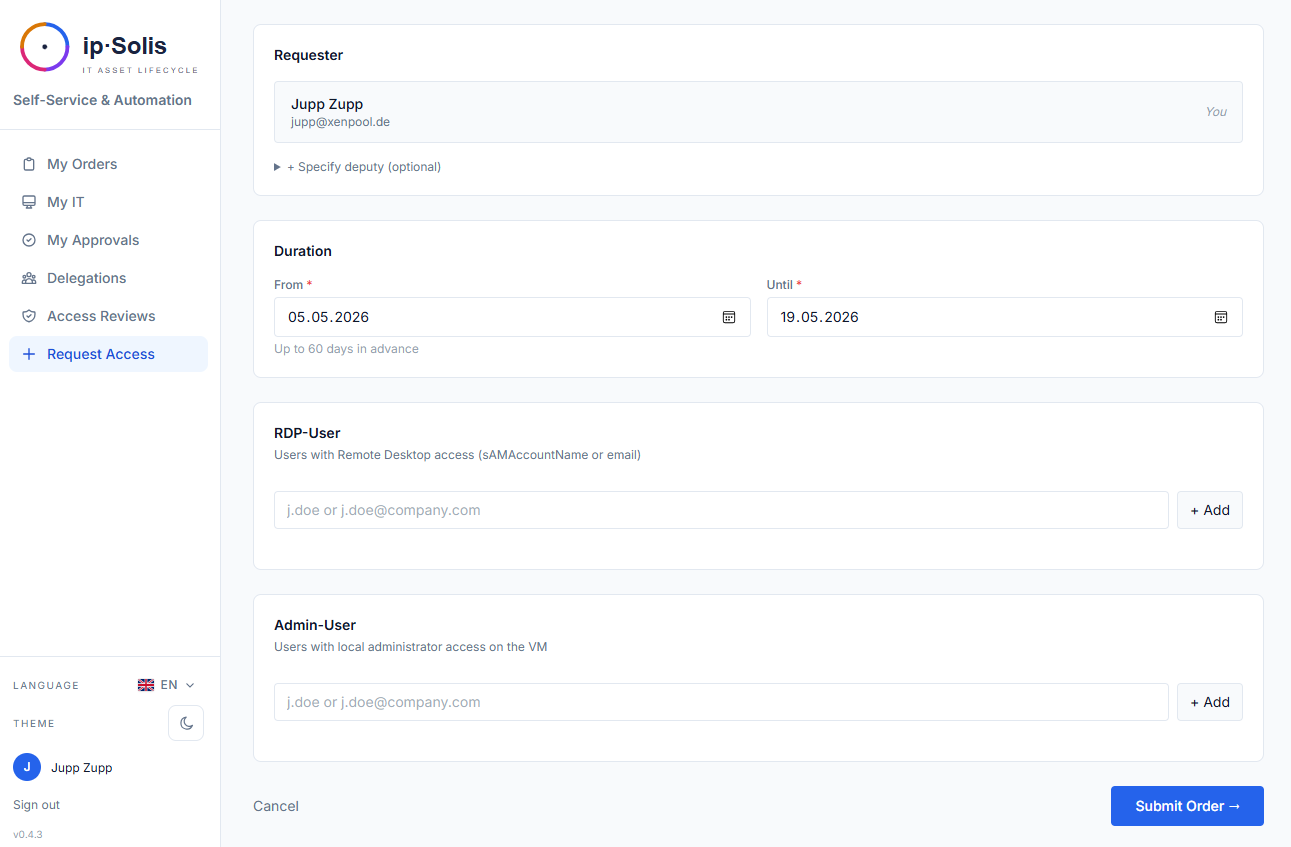
Search and filter appear automatically for catalogs with more than six definitions. The search matches name, description, and help text; the category dropdown filters by asset type category. Both work client-side with no page reload.
Help text — admins can attach a markdown-formatted description to each asset definition. When a requester selects a type, the rendered help text appears above the attribute fields. Use this to document pre-installed software, eligibility requirements, expected provision time, and support contacts.
Eligible Requestors
Asset types can be restricted to specific Active Directory groups. Users who are not members of the configured group do not see the definition in the catalog.
Filling in the Order Form
After selecting an asset type, the requester fills in any user-supplied attributes (e.g., hostname prefix, purpose, duration). Fields tagged with a data classification (PII, PHI, or PCI) show a warning badge so requesters are aware of the sensitivity before submitting.
Per-User Quota
If the asset type has a max_per_user limit set, the portal returns an error if the user already holds that many active instances of that type. The check covers all non-terminal states (pending, processing, provisioned, etc.) so users cannot bypass the limit with stacked future-dated orders.
Per-Order Cost Projection
When an asset type has a monthly_cost configured, the order form shows the projected total (monthly_cost × months_requested) before the user submits. This appears in the Access & Duration card.
Ordering a Package *(Pro)*
Beyond single assets, the Packages page offers ready-made bundles — a curated set of access ordered in one click (e.g. a role's standard toolkit). Items the user already has are skipped automatically; the rest go through the normal approval and provisioning flow as individual orders. Which packages appear here is controlled per bundle by administrators; see Lifecycle → Onboarding Bundles.
Approval Workflow
Orders that require approval enter a pending_approval state. The portal displays the current approval status on the order detail page. Provisioning does not begin until all required approvals are collected (subject to quorum — see below).
Approval Types
ip·Solis supports three complementary approval mechanisms that can be combined on any asset definition. All active mechanisms contribute approvers to the same order; the system deduplicates by email so a person who qualifies under multiple paths receives only one request.
Manager Approval
Enabled per asset type with Requires Manager Approval. When an order is submitted, ip·Solis looks up the requester's manager in Active Directory in real time. If no manager is configured for the account, the order is blocked with a clear error — the user must contact IT to have a manager assigned before they can request that asset type.
The manager's email and display name are taken from AD at order-creation time. If the manager has an active delegation window configured, the approval request is automatically re-routed to the deputy.
Application Owner Approval
Enabled per asset type with Requires Application Owner Approval. Owners are a fixed list of email addresses configured on the asset definition under Access & Approval → Application Owners. Every owner in the list receives an approval request; the quorum setting determines how many responses are needed.
Conditional Approval Rules
Rules add approvers dynamically based on the content of each order. They fire on top of (and merged with) manager and owner approvals — a single order can trigger all three. Rules are configured per asset type under Access & Approval → Conditional Approval Rules.
See the dedicated Conditional Approval Rules section below for full reference.
Approval Delivery
Approvers receive an email with one-click Approve and Decline links. The link contains a signed token — no portal login is required. Approvers act directly from their email client.
Microsoft Teams cards — when Teams integration is enabled, the same approve/decline prompt is also delivered as an Adaptive Card to the configured Teams channel.
Reminders — if an approver has not responded after the configured interval (default: 24 hours), the system re-sends the notification. Up to three reminders are sent before escalation.
Escalation — after reminders are exhausted, the configured escalation contacts are notified and receive their own one-click link.
Auto-decline — pending approvals past the configured inactivity window are automatically declined by a daily background task.
Quorum (N-of-M)
The Min. Approvals Required setting on an asset type controls how many of the collected approvers must approve before provisioning begins. Leaving it blank or set to 0 means all approvers must agree. Setting it to 1 means the first approval unblocks the order regardless of how many other approvers were notified.
Conditional rules can define their own per-rule quorum that applies only to the approvers that rule contributed, independently of the asset-type-level setting (see below).
Approval Notification in the Portal
When an asset type has any approval configured, the request form shows an amber notice bar so users know before they submit that their order will require approval. The bar adapts its message:
- Manager only — "This request requires approval from your manager before provisioning begins."
- Application owner only — "This request requires approval from an application owner before provisioning begins."
- Both — "This request requires approval from your manager and an application owner before provisioning begins."
Conditional rules do not appear in the portal notice because they fire conditionally — the user may or may not trigger them depending on what they fill in.
Conditional Approval Rules
Conditional rules let you add approvers based on the attributes of each individual order. They are evaluated at order-creation time; every rule whose condition matches contributes its listed approvers. Multiple rules can match a single order.
Rule Structure
Each rule has:
| Field | Description |
|---|---|
| Name | Human-readable label shown in the audit log and approval emails |
| Condition | A tree of conditions that must match for this rule to fire |
| Approvers | One or more email addresses (must be valid domain accounts) |
| Quorum | Optional N-of-M override for this rule's approvers only. Leave blank to fold into the asset-type-level quorum |
Condition Fields
Conditions compare a named field from the order context to a value.
Built-in fields — always available regardless of the asset type's attribute configuration:
| Field | Type | Description |
|---|---|---|
duration_days |
number | Requested duration in days (requested_until − requested_from) |
monthly_cost |
number | The asset type's configured monthly cost |
has_pii |
boolean | true if any attribute on the asset type is classified as PII |
has_phi |
boolean | true if any attribute is classified as PHI |
has_pci |
boolean | true if any attribute is classified as PCI |
requester_department |
string | AD-resolved department of the requesting user |
Custom attribute fields — any attribute defined on the asset type's Attributes tab is available as attr.<key>, where <key> is the attribute's internal key name. For example, an attribute with key project_code is referenced as attr.project_code. The value comes from what the requester filled in when placing the order.
Operators
| Operator | Applies to | Behaviour |
|---|---|---|
> >= < <= |
Numbers | Numeric comparison. Non-numeric values never match |
== |
Any | Case-insensitive string equality. Booleans match both true/false and True/False |
contains |
Strings, lists | Case-insensitive substring match. For list-valued attributes, checks whether any element contains the value |
Compound Logic
Conditions can be nested using ALL (AND), ANY (OR), and NOT groups to any depth (up to 8 levels). The root of every rule is an ALL or ANY group.
- ALL (AND) — every condition in the group must match. An empty group always matches.
- ANY (OR) — at least one condition must match. An empty group never matches.
- NOT — inverts a single nested condition.
Groups can be nested inside other groups. For example: (duration > 30 AND project_code contains "EU-") OR has_pii == true.
Approvers
Each rule lists one or more approver email addresses. Approvers must be valid domain accounts — ip·Solis looks up each email in Active Directory when the rule fires. If a configured approver cannot be resolved, the order is blocked with an error until the rule is corrected by an administrator.
This mirrors the behaviour of manager approval: the system refuses to create an approval record for an unresolvable identity. The AD-canonical display name is used in all notifications regardless of what name was typed when configuring the rule.
Approver Deduplication
The same email address is never notified twice for the same order, even if it appears in multiple rules or overlaps with the manager or application owner. The first matching rule's quorum setting wins when the same email appears in more than one rule — keep approver lists disjoint across rules when per-rule quorum matters.
Per-Rule Quorum
Setting Quorum on a rule creates an independent quorum group for that rule's approvers, separate from the asset-type-level Min. Approvals Required. For example:
- Asset type: min 1 of all approvers (manager + owner + rule approvers combined)
- Rule "CISO + DPO": quorum 1 — either CISO or DPO is sufficient for this rule's group
Both quorums must be satisfied before provisioning begins.
SoD Exemption
Administrators who are also configured as rule approvers would normally be blocked by the Separation of Duties check (an admin cannot approve their own configuration choices). Enabling SoD exempt on a rule bypasses this check for that rule's approvers — use this for static compliance officers who happen to hold an admin role.
Examples
Extension over 30 days in an EU project requires CISO and DPO (either one sufficient):
Rule: EU project + long duration needs CISO+DPO Condition:
ALL—duration_days > 30ANDattr.project_code contains "EU-"Approvers:ciso@example.com,dpo@example.comQuorum: 1
Any order involving personal data notifies the privacy team:
Rule: Personal data tag Condition:
has_pii == trueApprovers:privacy@example.comQuorum: (blank — folds into asset-type quorum)
High-cost orders from the Finance department need CFO sign-off:
Rule: Finance high cost Condition:
ANY—monthly_cost >= 500ANDrequester_department == FinanceApprovers:cfo@example.comQuorum: 1
My IT Dashboard
The My IT view (/portal/my-it) shows all active assets assigned to the logged-in user.
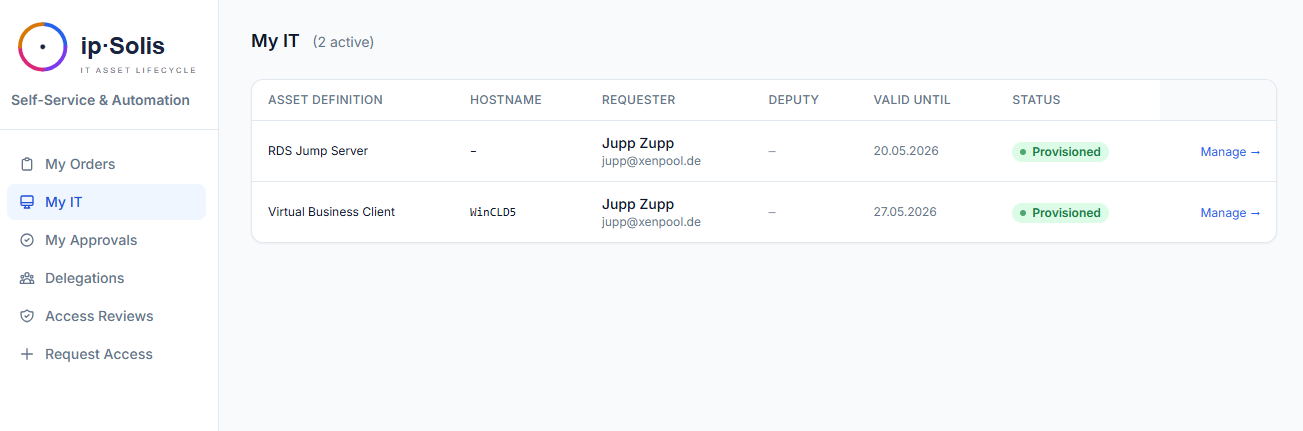
From here, users can:
- Extend — submit a request to extend the expiry date of an active asset (subject to approval if configured)
- Modify — change user-supplied attributes on an existing order (subject to re-approval if the asset type has
reapproval_on_modifyenabled) - Return — trigger deprovisioning and release the asset back to the pool
- Cancel — cancel a pending or scheduled order before it is processed
Owner Ordering
Owner ordering lets one user place an order on behalf of another. The requester selects the Owner (the person the asset is ordered for) in the order form. The resulting order is attributed to the owner, not the submitting user, so AD group membership, approvals, and audit rows all reference the correct person.
Use cases: IT admin ordering a VDI for a new hire before their first day; a manager ordering on behalf of a team member who cannot access the portal.
Scheduled Orders
Orders can be dated in the future. A scheduled order reserves the asset immediately (so no one else can claim it) but does not trigger provisioning until the scheduled start date arrives. The Celery Beat task check-scheduled-orders runs hourly to dispatch ready orders.
Scheduled orders appear in My IT with a scheduled status badge and the target start date.
Approval Delegation
Admin-configured delegation — an administrator can configure a deputy window for any approver (e.g., "Stefan is on leave 1–15 August; route his approvals to Jupp"). New orders during the window automatically address the deputy. The original assignee is captured in the audit trail.
Self-service delegation — managers can configure their own delegation windows directly from the portal at /portal/delegations, without going through an admin. The server enforces that a user can only configure delegation for their own approvals.
Access Certifications *(Pro)*
When an access certification campaign is active and the logged-in user is a reviewer, a notification appears in the portal directing them to /portal/certifications. This page shows all pending review rows assigned to the user, with one-click Confirm (user keeps access) or Revoke (access is pulled immediately) for each.
Leaver Blocking
If a user is flagged as a leaver (via HR webhook or SCIM), they are blocked from placing new orders immediately. The portal shows a clear message explaining that their account has been flagged and directing them to contact IT if this is in error.
Multi-Language Support
The portal UI is available in English, German, French, Spanish, and Italian. The active locale is detected from the browser's Accept-Language header and can be overridden via a language selector. All labels, validation messages, email templates, and empty states are localized.
Accessibility
The portal follows the structural basics of BITV 2.0 / EN 301 549 — a skip-to-content link, semantic landmarks and labels, a keyboard-visible focus indicator, live-region notification badges, and a document lang that follows the selected language (relevant for public-sector procurement). This closes the structural essentials; a formal accessibility statement and external conformance test are a separate step per deployment.